
The snapAddy BusinessCards app allows you to export multiple business cards at once. You can transfer them to your contact book, as an Excel file, to your LeadResearch or to the LeadResearch of your Assistance. This time-saving feature is particularly useful after trade shows or networking events.
How to export multiple business cards at once:
- Activate multi-selection: Press and hold on a contact in your contact list until a checkmark icon appears on the left side.
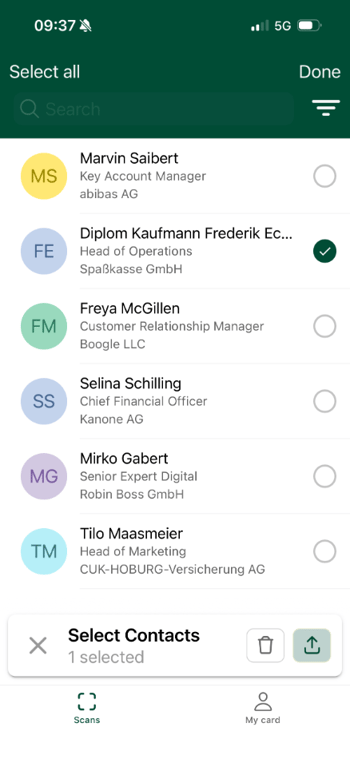
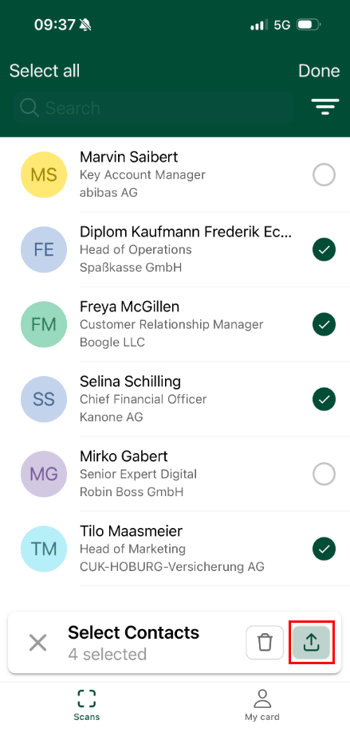
- Select contacts: Tap on all the contacts you wish to select. Alternatively, you can use the "Select all" button in the upper left corner to mark all contacts at once.
- Start export: Press the export button.
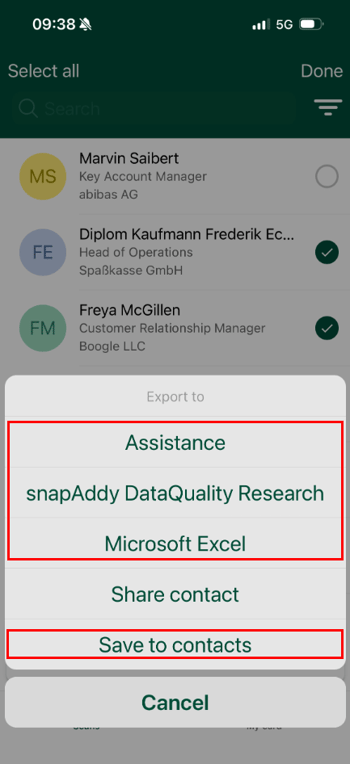
- Choose destination: Select your desired export destination from the available options.
Note: If you use Android, you can change the destination of the bulk export in the BusinessCards app settings from the device contacts to Google contacts.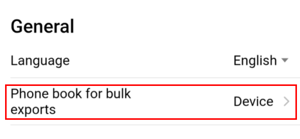
Available export destinations:
- Your smartphone's contact book
- Excel file
- snapAddy LeadResearch
- Your assistant's LeadResearch
Related articles:
- Exporting business cards from the BusinessCards app – which options are available?
- How can I scan more than one business card with the BusinessCards app?
- How do I install the snapAddy BusinessCards on my smartphone?
If you have any further questions, please feel free to contact support@snapaddy.com or your Customer Success Manager.