
Step-by-step guide
- Open "My Card" Tap "My Card" in the bottom left corner.
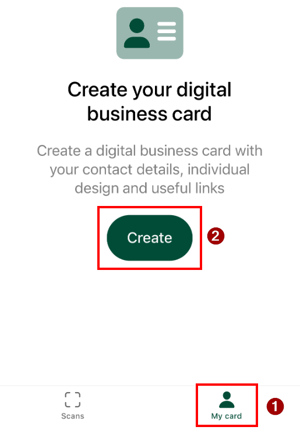
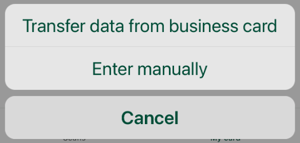
- Create a new card Tap "Create". You now have two options:
- "Transfer data from business card": Scan your own business card to import your contact data automatically.
- "Enter manually": Enter your contact data step by step yourself.
- Complete your contact data in five steps Creating your digital business card is guided through five clear steps:
- Profile: Enter your basic profile data such as name and position.
- Info: Add a short text that will be displayed below your personal data on the business card.
- Address: Enter your business address.
- Design: Customize the appearance of your digital business card. Additional design options are also available in the dashboard.
- Links: Add relevant links, e.g. to your business social profile or company website.
- Done: Once all steps are completed, your digital business card is displayed in the app and is ready to be shared at any time.
Tip: Tap on your created business card to display a QR code. Simply show it to the person you are meeting and let them scan it to share your contact data quickly and easily.
Related articles
- How to use the BusinessCards App
- How do I install the snapAddy BusinessCards on my smartphone?
- Exporting business cards from the BusinessCards App – Which options are available?
If you have any further questions, please feel free to contact support@snapaddy.com or your Customer Success Manager.