
Process overview
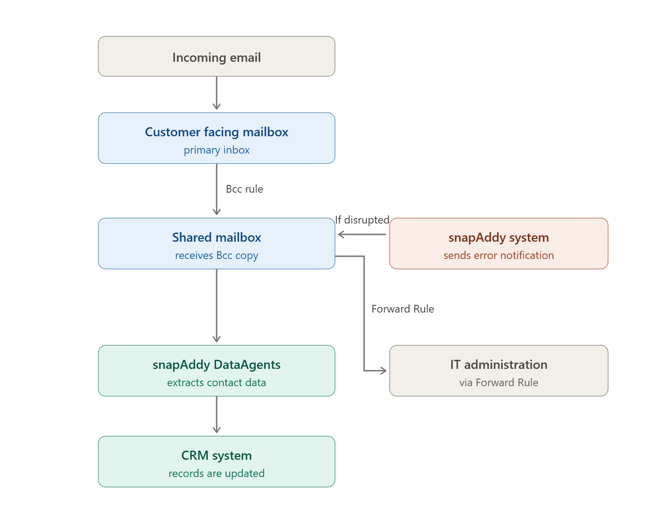
Note: If you already have a shared mailbox and want to connect it to DataAgents, you can proceed directly to step 3.
1. Add a shared mailbox in the Exchange Admin Center
Prerequisite: a mailbox already exists in your Exchange (any type of mailbox works)
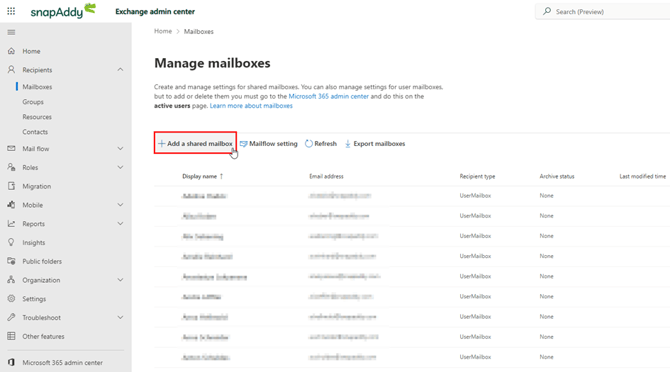
Open the Exchange Admin Center and create a new shared mailbox, such as snapaddytest@snapaddy.com.
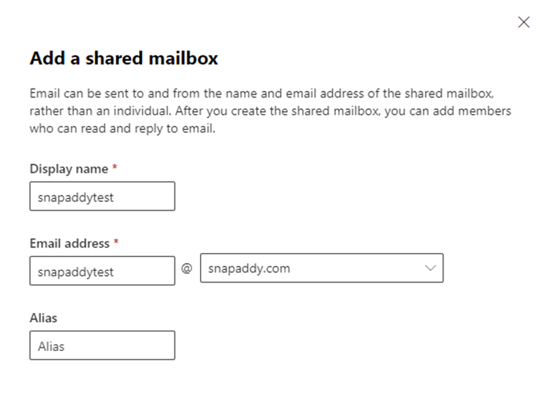
Important: the M365 user account for the shared mailbox still has to be activated and a password has to be set.
2. Create a mail flow rule
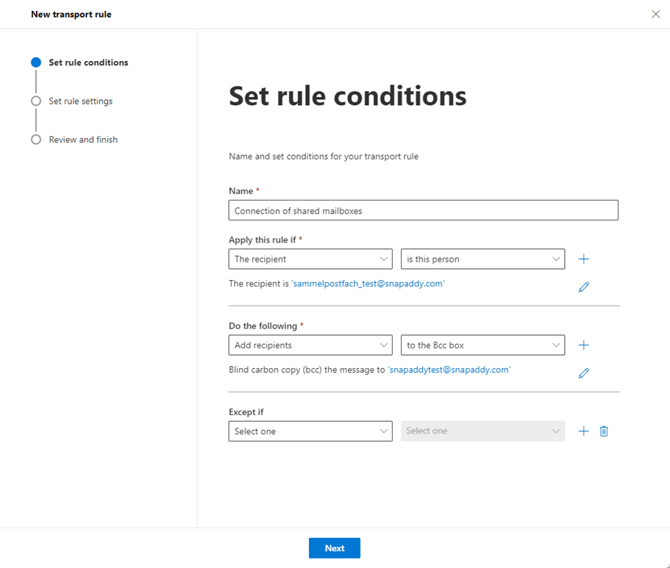
In the Exchange Admin Center, go to Mail flow → Rules and create a new rule with the following configuration: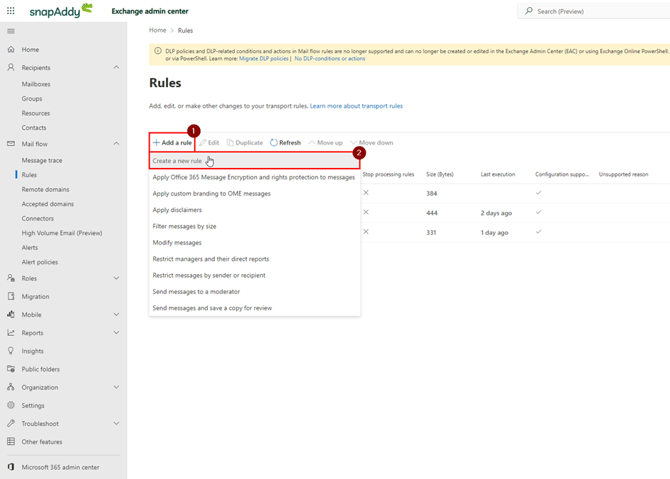
Rule condition: If the recipient is the customer facing mailbox, add the shared mailbox to the Bcc field.
Mode: "Enforce"
3. Connect the mailbox in the snapAddy settings
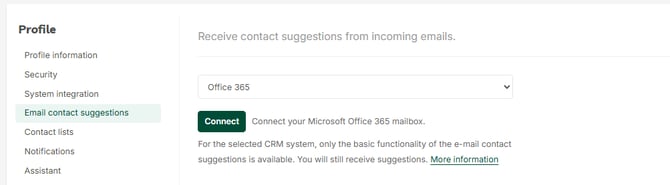
Open the snapAddy settings and connect the shared mailbox.
Note on the email address: The email address you enter when establishing the connection must be exactly the address shown in Microsoft 365 under User ID.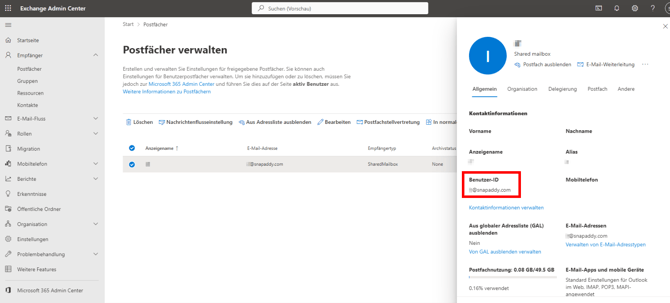
4. Create a forwarding rule for snapAddy emails
Finally, create a transport rule that forwards automated messages from snapAddy to the responsible person.
Why is this useful? If the connection to the shared mailbox is disrupted for any reason, snapAddy sends a notification to that mailbox. A forwarding rule ensures that this message reliably reaches the responsible person – typically your IT administrator – so the connection can be restored quickly.
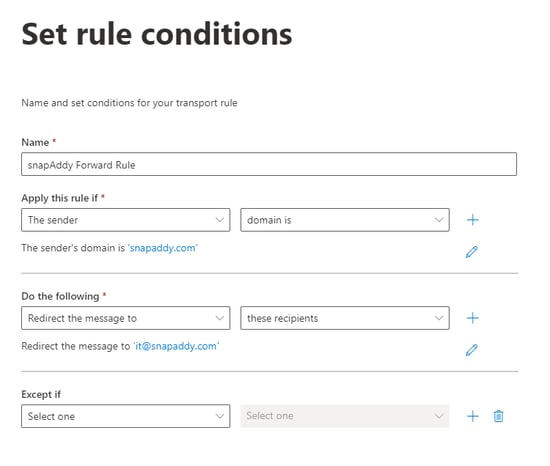
How to configure the rule:
In the Exchange Admin Center, go to Mail flow → Rules and create a new transport rule with the following settings:
- Name: Enter a clear name, for example
snapAddy Forward Rule. - Apply this rule if: Select The sender → domain is and enter
snapaddy.com. The rule will then apply only to messages sent from snapAddy. - Do the following: Select Redirect the message to → these recipients and enter the email address of the responsible person or an IT distribution list (for example,
it@your-domain.com). - Except if: You can leave this field empty unless you want to define specific exceptions.
Save and activate the rule. All system messages sent by snapAddy to the shared mailbox will now be redirected automatically to the specified address.
Tip: Review the configured recipient address on a regular basis to ensure it remains active, so that notifications about connection issues can be addressed without delay.