
snapAddy VisitReport offers an elegant alternative: by combining text recognition with a business socials search, you can simply photograph the badge, and the app automatically enriches the contact record with publicly available profile data. The result is a complete dataset — without a paid API integration from the event organizer.
When is this method useful?
At nearly every trade show, attendees wear a badge with name, company, and sometimes a QR code. snapAddy VisitReport natively supports badge scanning, provided the organizer makes the corresponding API documentation available. In practice, however, this is not always the case: sometimes no API is offered, sometimes the cost of activation is disproportionately high, and occasionally the interface details are only shared shortly before the event starts. In exactly these scenarios, the combination of text recognition and business socials search delivers high-quality contact data quickly and reliably — a capability that distinguishes snapAddy VisitReport from many competing solutions in mobile lead capture.
Prerequisites
For the feature to work smoothly, please make sure that:
- snapAddy VisitReport is installed on the mobile device and signed in to the account.
- Abusiness social network has been connected in the app settings.
- The camera permission is enabled for the app.
- A stable internet connection is available (for profile search and data enrichment).
Step-by-step instructions
-
Open the event and add a new participant
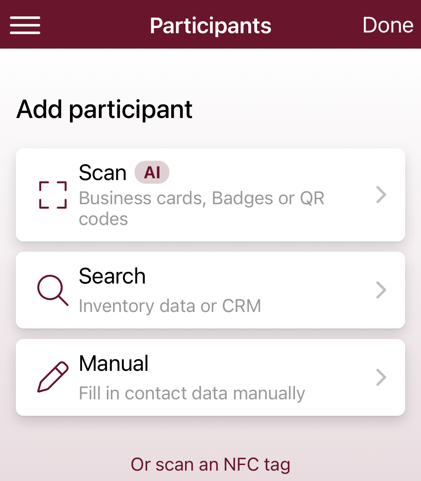
In the VisitReport app, open the relevant event and start a new visit report. Tap the option to add a participant.
-
Select the business socials search icon
Once the search dialog appears, tap the icon for the connected business social network.
-
Start text capture via the camera
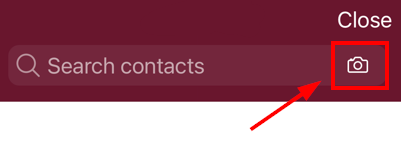
Instead of typing the name manually, choose the camera symbol on the right of the search bar, then select "Capture text". -
Photograph the badge
Hold the badge in front of the camera so that the name and company are clearly readable in the frame. The app extracts both pieces of information via text recognition (OCR) — no QR code is required.
-
Pick the correct match
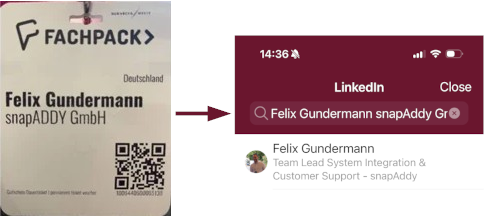
The recognized data is forwarded automatically to the connected business social network. Select the matching profile from the search results. -
Add the contact to the report
With one tap, you transfer name, position, company, and other available profile data into the visit report.
-
Enrich with a corporate email
Use the email validator afterwards to generate and verify the corporate email address. This makes the record immediately ready for a follow-up email or CRM export.
Practical tips for the best results
- Lighting: Avoid strong reflections on the badge holder. A slightly angled shot helps reduce glare.
- Frame: Focus on the area showing name and company. Extra symbols, logos, or sponsor mentions can slow down text recognition.
- Compound names and special characters: For names with hyphens, umlauts, or accents, briefly review the search result to make sure you pick the right contact.
- Multiple participants at the booth: You can repeat the process per person and add several participants to a single visit report.
- No match found? If the person does not maintain a public profile, you can complete the data manually or scan a business card instead.
Data privacy and GDPR
Please keep in mind that captured contact data remains subject to GDPR. Where required, obtain consent from the data subject and, where appropriate, document it directly in the visit report. snapAddy VisitReport offers suitable question types for this — for example, mandatory questions with a signature field.
Related Articles
-
How to connect to business socials in the VisitReport app
- Badge scan with snapAddy VisitReport
- Email validator in the VisitReport app
- Can I add multiple participants to a visit report?
- Quick Tip: Everything is a business card
- Quick Tip: Capturing contact information using company data search in VisitReport
- Add and export a signature field