
Contents:
- What do I need before I start?
- How do I create a shared contact list for BusinessCards?
- How do I make an existing shared contact list available in BusinessCards?
- How do I find the shared contact list in the BusinessCards App?
- Which articles help me next?
What do I need before I start?
- You are an administrator of your organization in the snapAddy Dashboard.
- The users who get access use the BusinessCards App with your organization.
- If you want to give access to a team, the user group exists in Settings > User groups.
How do I create a shared contact list for BusinessCards?
You create a shared contact list for BusinessCards in the snapAddy Dashboard under Settings > Shared contact lists.
Step 1: Open Settings > Shared contact lists.
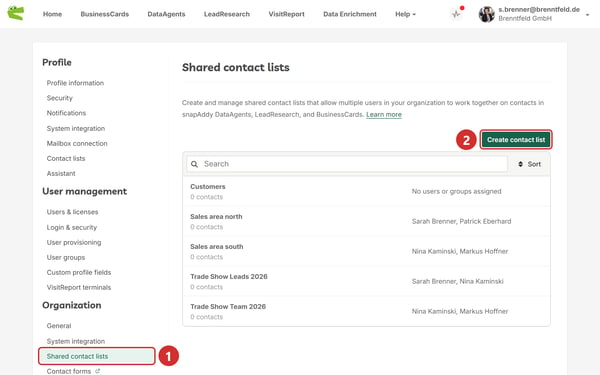
Step 2: Click Create contact list.
Step 3: In the Name field, enter a name for the list.
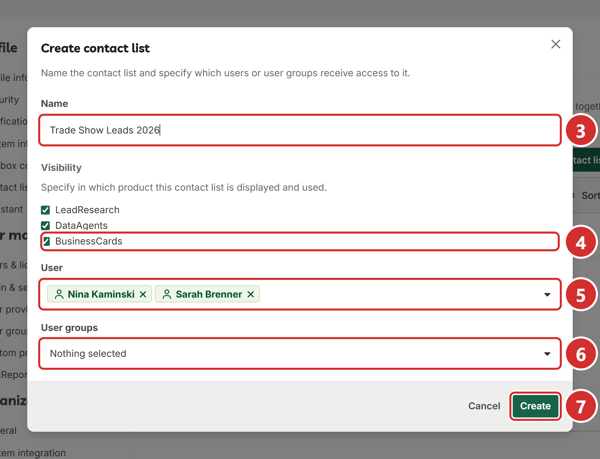
Step 4: Under Visibility, activate BusinessCards.
Step 5: Under User, select the users who get access. To see the list in your own BusinessCards App, also select yourself.
Step 6: Under User groups, select the user groups that get access.
Step 7: Click Create.
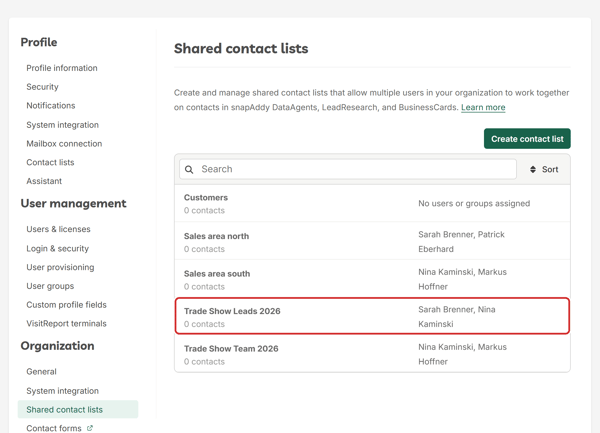
Result: The new list shows on the Shared contact lists page with its users. The users and user groups that you selected see the list in the BusinessCards App.
Note: BusinessCards is deactivated by default under Visibility. LeadResearch and DataAgents are activated by default. If you do not activate BusinessCards, the list does not show in the BusinessCards App.
How do I make an existing shared contact list available in BusinessCards?
You make an existing shared contact list available in BusinessCards when you activate BusinessCards in the settings of the list.
Step 1: Open Settings > Shared contact lists.
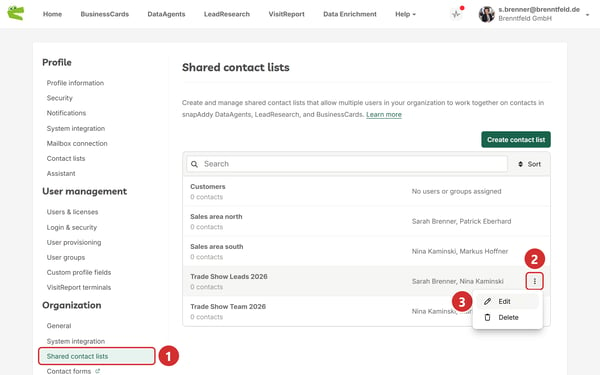
Step 2: Move the pointer to the list and click the three-dot icon.
Step 3: Click Edit.
Step 4: Under Visibility, activate BusinessCards.
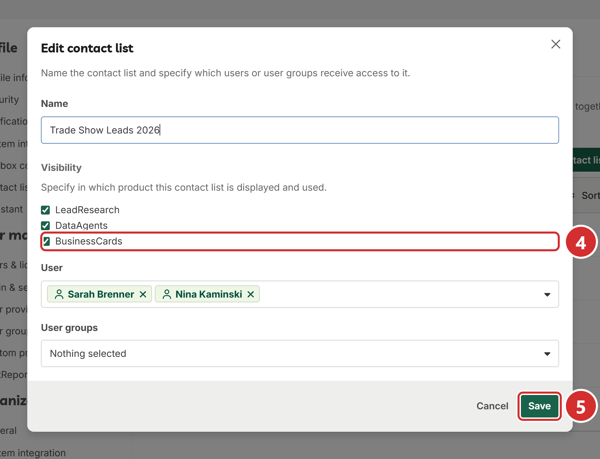
Step 5: Click Save.
Result: The users and user groups of the list now see the list in the BusinessCards App.
How do I find the shared contact list in the BusinessCards App?
In the BusinessCards App, the shared contact list shows in the list selection with an icon of two people. All users with access work on the same contacts in this list.
Step 1: Tap the name of the list at the top.
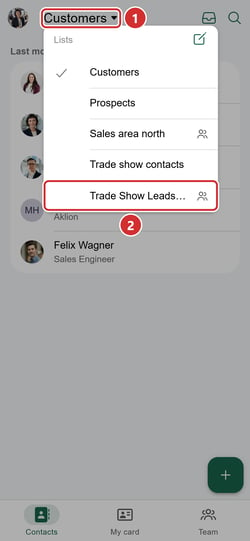
Step 2: Select the shared contact list.
Result: The app shows the contacts of the shared contact list.
Note: The BusinessCards App shows a shared contact list only to the users and user groups that are selected in the list. If you created the list, you also see it only when you selected yourself under User. The app shows contact lists only when you are signed in. You cannot rename or delete a shared contact list in the BusinessCards App. An administrator changes or deletes the list in Settings > Shared contact lists.
Which articles help me next?
How do I move contacts into the shared contact list?
In the BusinessCards App, select the contacts, tap More options and Move to list, and then select the shared contact list. Read more in How do I move contacts to another list in the BusinessCards App?
What can users do in a shared contact list?
All users of a shared contact list see the contacts that other users add, and they can edit them. They can also export their own contacts and the contacts of other users, for example to the CRM system, to an Excel list or as a vCard. Read more in How to create a shared LeadResearch contact list.
How do I export contacts from the BusinessCards App to my CRM system?
In the BusinessCards App, open Settings and select your CRM system under CRM. After the scan of a business card, click Export at the bottom right. Read more in How do I export contacts from the app to my CRM system?
If you have any further questions, please contact support@snapaddy.com or your Customer Success Manager.