
What do I need before I start?
- You are signed in to the snapAddy BusinessCards App with your snapAddy account.
- Your device is online.
- You have at least two contact lists. A shared contact list counts as a list.
How do I move contacts to another list?
You select the contacts in the selection mode and then tap Move to list in the More options menu.
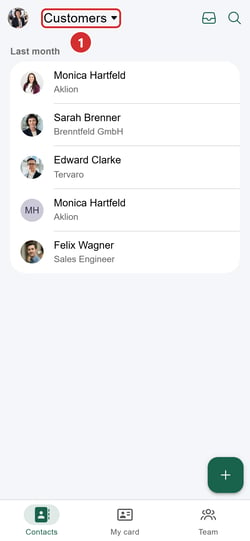
Step 1: Tap the name of the list at the top.
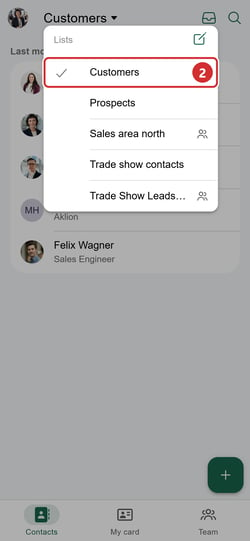
Step 2: Select the list that contains the contacts.
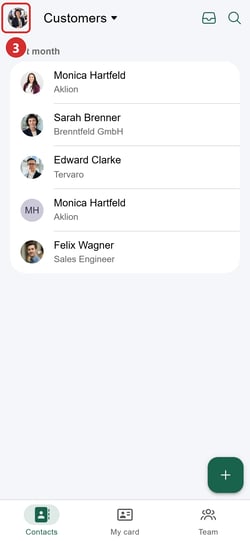
Step 3: Tap your profile picture at the top left.
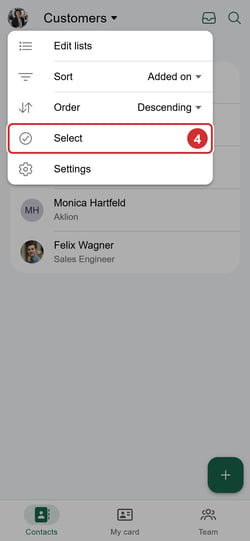
Step 4: Tap Select.
Step 5: Tap the contacts that you want to move.
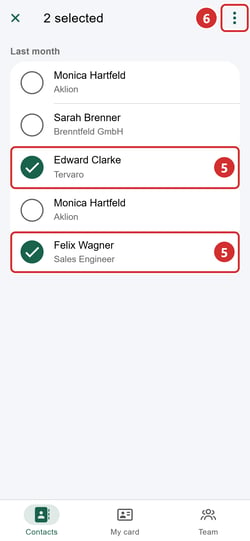
Step 6: Tap More options (three dots) at the top right.
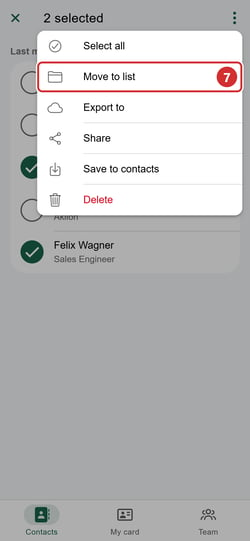
Step 7: Tap Move to list.
Step 8: Select the target list.
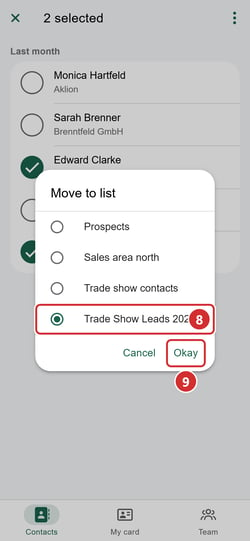
Step 9: Tap Okay.
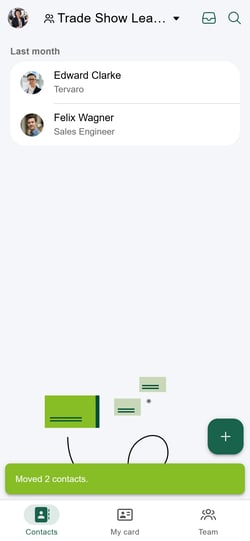
Result: The app moves the contacts and shows the message Moved 2 contacts. The app then opens the target list.
Tip: You can also start the selection mode with a long press on a contact. To move all contacts of a list, tap Select all in the More options menu.
Note: When you move contacts to a shared contact list, all users of this list see the contacts. When you move contacts out of a shared contact list, the other users of the list no longer see them.
Why can I not tap Move to list?
The BusinessCards App offers Move to list only when it can move the contacts to another list.
- If you are not signed in or your device is offline, the app does not show Move to list.
- If the contacts are in the Offline list, the app does not show Move to list. The app uploads these contacts when your device is online again.
- If no other list exists, Move to list is not available. Create a second list with Edit lists in the menu of your profile picture.
Which articles help me next?
How do I give my team a shared contact list in the BusinessCards App?
An administrator creates the shared contact list in the snapAddy Dashboard under Settings > Shared contact lists and activates BusinessCards under Visibility. Read more in How do I create a shared contact list for snapAddy BusinessCards?
How do I export several contacts at once?
Select the contacts with a long press, tap the share icon and select the destination under Export to. Read more in How do I export multiple business cards from the BusinessCards App?
If you have any further questions, please contact support@snapaddy.com or your Customer Success Manager.