
Who this is for
IT administrators who manage Microsoft Intune App Protection Policies (APP/MAM) for iOS/iPadOS and Android, and who use snapAddy VisitReport and/or snapAddy BusinessCards on managed or unmanaged devices.
Background
Intune App Protection Policies can restrict how data moves between "policy managed" apps and other apps on a device — for example, blocking cut/copy/paste, "Save as," or "Open in" actions to apps outside the managed set. This protects company data, but it can also block legitimate data transfer to trusted business apps like snapAddy that aren't themselves configured as policy-managed apps in your tenant.
To solve this without managing every app under APP, Intune lets you define data transfer exceptions: specific apps that stay exempt from the transfer restriction. The underlying mechanism is described in Microsoft's official documentation:
Create data transfer exceptions for your Intune App Protection Policies: https://learn.microsoft.com/en-us/intune/app-management/protection/create-data-transfer-exceptions (see the iOS-specific section for the platform difference below: https://learn.microsoft.com/en-us/intune/app-management/protection/create-data-transfer-exceptions#ios-data-transfer-exceptions)
Important platform difference
Exceptions are identified differently depending on the platform — this is confirmed directly in the admin center's field labels:
| Platform | App is identified by | Field label you'll see in Intune |
|---|---|---|
| iOS/iPadOS | The app's registered URL scheme | e.g. "Dialer App URL Scheme" |
| Android | The app's package ID (application ID) | e.g. "Dialer App Package ID" |
The values you need for snapAddy
| Platform | App | Exception value |
|---|---|---|
| iOS/iPadOS | snapAddy VisitReport | snapaddy-vr |
| iOS/iPadOS | snapAddy BusinessCards | snapaddy-bcs |
| Android | snapAddy VisitReport | com.snapaddy.questions |
| Android | snapAddy BusinessCards | com.ionicframework.snapaddybusinesscards938320 |
Prerequisites
- Access to the Microsoft Intune admin center with permissions to edit App Protection Policies (Policy and Profile Manager or equivalent role)
- An existing iOS/iPadOS and/or Android App Protection Policy already assigned to your users
- A few minutes for the policy to sync to devices after saving (immediate if the user manually syncs the Company Portal app)
Steps
Repeat this whole procedure once for your iOS/iPadOS policy and once for your Android policy, since the exception values differ per platform.
1. Open the policy
Go to Apps > App protection policies, select the policy that applies to your snapAddy users (e.g. "snapADDY iOS App Protection Policy" or "snapADDY Android App Protection Policy"), then click Properties > Edit policy. This opens the Data protection tab.
2. Open the "Exempt apps" panel
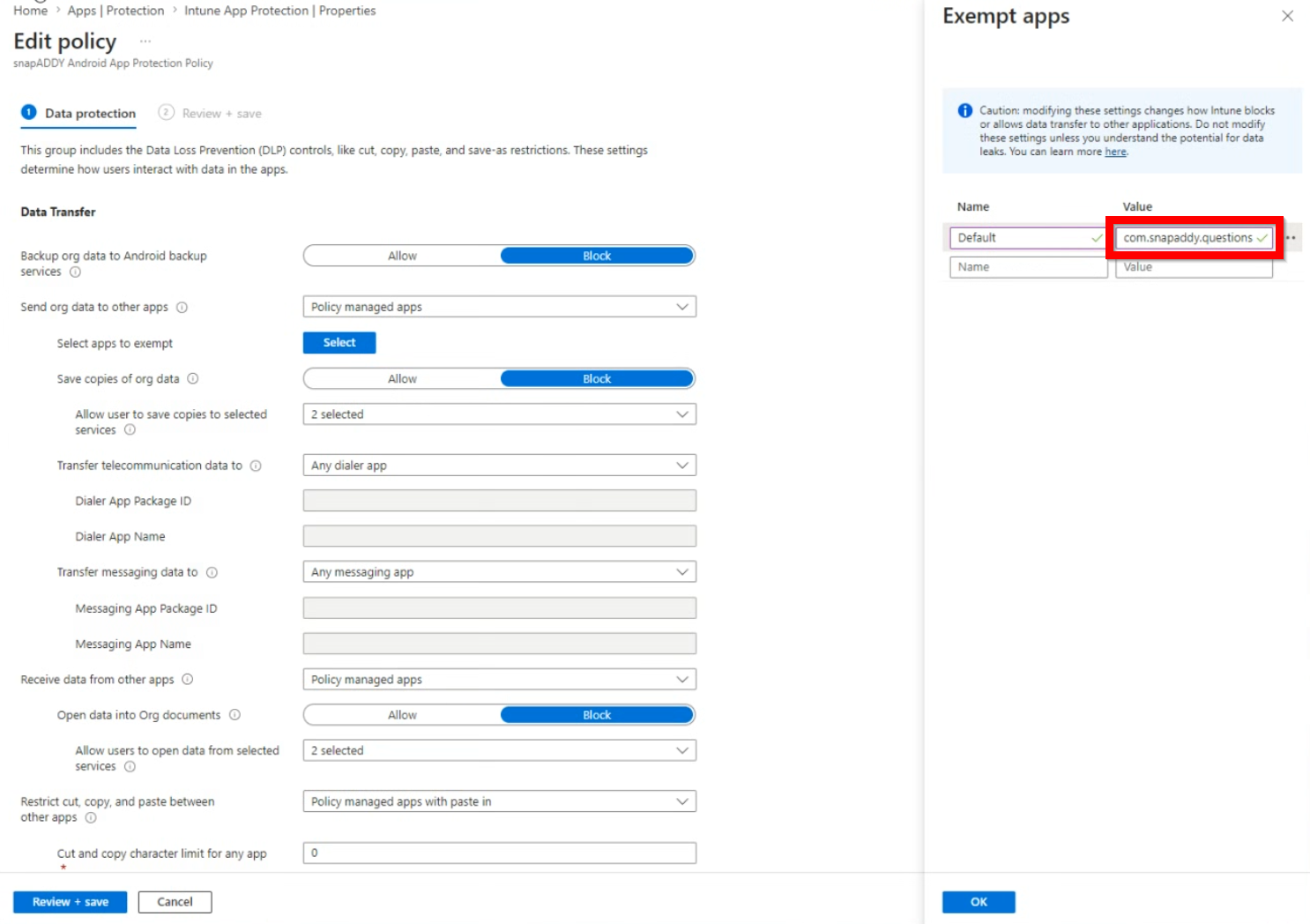
Under Data Transfer, find Send org data to other apps (this should already be set to a restrictive value like Policy managed apps — the exemption only matters when a restriction is active). Click Select next to Select apps to exempt.
This opens the Exempt apps flyout panel on the right.
Note shown in this panel: "Caution: modifying these settings changes how Intune blocks or allows data transfer to other applications. Do not modify these settings unless you understand the potential for data leaks." — the snapAddy values below only exempt those two named apps, so this is a narrow, low-risk change.
3. Add the snapAddy exception(s)
In the Exempt apps table, use the Name and Value columns:
- Leave Name as Default
- Enter the exception value from the table above into Value
Add one row per app — after you fill in a row, a new empty row appears below it for the next entry.
On the iOS/iPadOS policy, add:
- snapaddy-vr
- snapaddy-bcs
On the Android policy, add:
- com.snapaddy.questions
- com.ionicframework.snapaddybusinesscards938320
4. Confirm and save
Click OK to close the Exempt apps panel, then click Review + save > Save on the policy page to apply the change. Repeat steps 1–4 for the other platform's policy if you haven't already.
Verify it worked
- On a test device, open the Company Portal app and trigger a manual sync (or wait for the next automatic check-in).
- Open a managed app (e.g. Outlook) and try to copy/paste or "Open in" content into snapAddy VisitReport or BusinessCards.
- The action should now succeed instead of being blocked by the App Protection Policy.
Common Issues
- Exception added but transfer is still blocked: Confirm the device has actually re-synced the policy — changes don't apply retroactively until the next check-in.
- iOS exception doesn't work: Double-check you entered the URL scheme (snapaddy-vr / snapaddy-bcs) into Value — not a bundle ID, these are not the same thing on iOS.
- Android exception doesn't work: Confirm the package ID matches exactly, including case — com.snapaddy.questions and com.ionicframework.snapaddybusinesscards938320.
Related Articles
- Microsoft: Create data transfer exceptions for App Protection Policies — https://learn.microsoft.com/en-us/intune/app-management/protection/create-data-transfer-exceptions