
Tip: You can find everything you need regarding our BusinessCards in the playlist here!
What is central Card Management?
Central Card Management is the area in snapAddy BusinessCards where administrators create and design the digital business cards of all users of the organization in one place.
In the card list, you will see the digital business cards of all users of your organization. There are two types of cards: managed cards, which can be centrally edited by administrators, and unmanaged cards, which are managed by their respective creators.
Unmanaged cards can be converted into managed cards by assigning a BusinessCards license to their creator. The functions for central card management always refer to managed cards.
How do I reach Card Management?
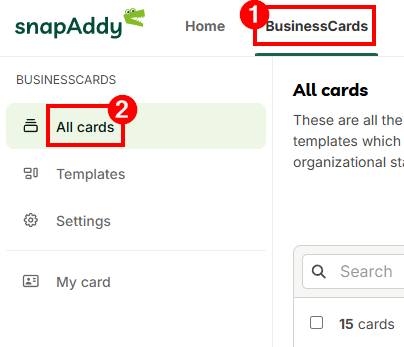
In the snapAddy dashboard, open the BusinessCards tab at the top and select All Cards in the left navigation to open the card list in Card Management.
How do I create new business cards?
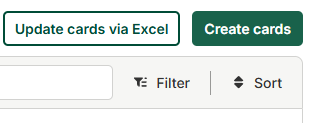
In the card list, click Create Cards, choose a template and the desired users, and set the sharing permission. The prerequisite is that the users hold a BusinessCards or LeadResearch license.
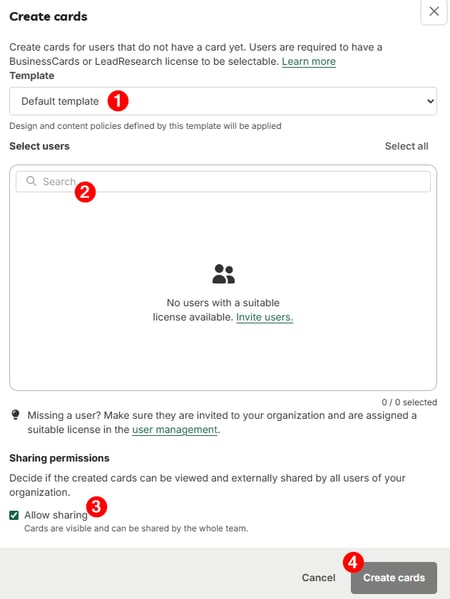
In the Create Cards dialog you proceed in four steps:
-
select a template whose design and content guidelines are applied,
-
choose users via the search field,
-
use Allow sharing to define whether the cards are visible organization-wide and can be shared externally,
-
confirm with Create Cards.
Afterwards you can edit the cards of individual users and enter individual values.
Note: If a user is missing from the selection, make sure the user is invited to the organization and has been assigned a matching license on the Users & Licenses page.
How do I update many cards at once via Excel?
Use the Update Cards via Excel button to overwrite the values of many existing business cards in one step via an Excel upload.
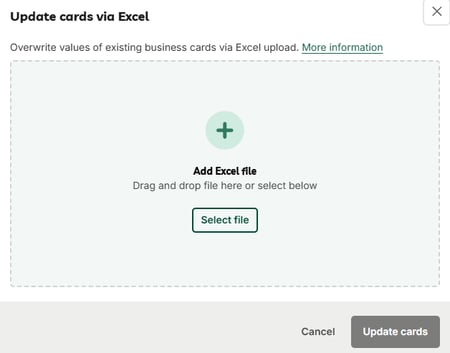
Tip: First download an Excel file with the existing cards and edit the values. Then upload the modified file again and update the corresponding fields.
How do I filter and sort the card list?
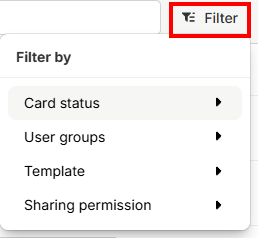
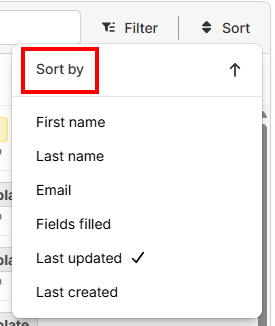
Use Filter to narrow the card list by card status, user group, template and sharing permission. Use Sort to order the list by first name, last name, email, fields filled, Last updated or Last created.
How do I notify users about their business card?
From Card Management, send a notification email to your users. The email contains all the information necessary for the users to save their business card directly in Apple or Google Wallet.
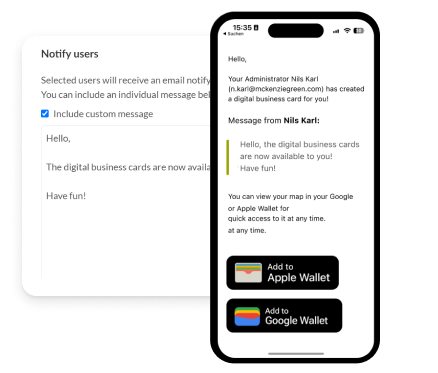
Tip: Optionally, you can add a personal message to this email.
Where do I set templates and central card management?
Good to know: You create and manage templates in the Templates area. Under Settings you configure the export configuration and general card management, for example who may share, exchange or delete cards and whether users are automatically notified by email when a card is created.
Which questions commonly come up next?
How can I create templates for my snapAddy BusinessCards?
In the Templates area you create, assign and manage templates for the digital business cards of your organization. For details, see How can I create templates for my snapAddy BusinessCards?
How do I set up sharing permissions for cards?
Administrators and BusinessCard Managers define the sharing permission for the users of their organization. Learn more in Setting up sharing permissions for cards.
How do I establish a consistent appearance for the business cards?
A central design determines the appearance of all digital business cards and which information appears on them. See How do I establish a consistent appearance for the digital business cards?
If you have more questions, feel free to contact our support under support@snapaddy.com or your Customer Success Manager.