
🡸 Previous video
In the second part of our video tutorial you can learn where to edit your user profile information. In addition to the default fields of a user profile, additional custom user profile fields can also be defined.
Custom profile fields are relevant only for the Team coordination feature for the VisitReport users.
How do I open my profile information in snapAddy?
Open your profile information by clicking your e-mail address in the upper right corner, then Settings, and selecting Profile information in the sidebar. The Profile information page opens where you can view and edit your details.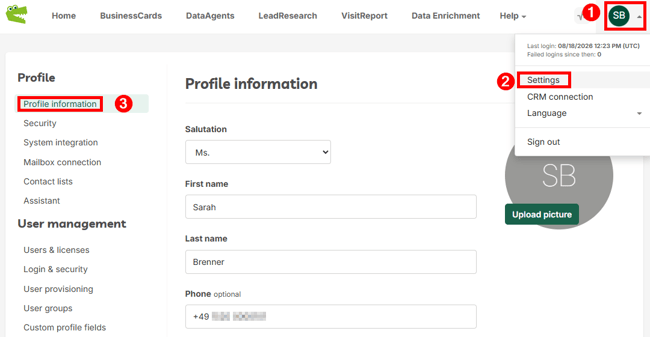
Which details can I edit on the Profile information page?
On the Profile information page, you can edit your salutation, first name, last name, optional phone number, time zone, spoken languages, and profile picture. Your assigned role (for example, Admin) is displayed but cannot be edited. Any fields shown below the role are custom profile fields, which can also be edited.
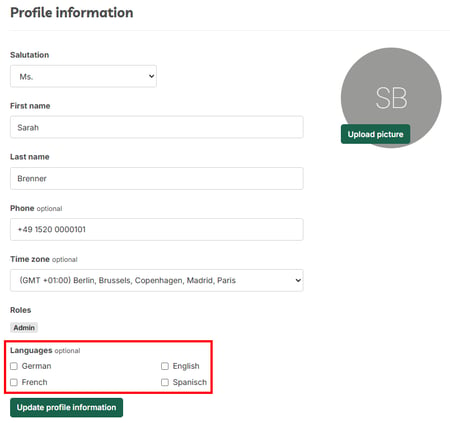
After changing any value, click Update profile information to save.
What are custom profile fields in snapAddy?
Custom profile fields are additional profile fields defined by the snapAddy admin of your organization. If you see extra fields in your profile information beyond the standard ones, an admin has created custom profile fields for all users.
Note: Custom profile fields are relevant only for the Team coordination feature for VisitReport users.
What is the purpose of custom profile fields?
Custom profile fields let users answer additional questions in their profile so their account is more complete, for example which languages a user speaks or which products a user is an expert for. After completion, these fields appear in the Team coordination backend and in the app.
How do I add a custom profile field as an admin?
As an admin you add custom profile fields under Settings > Custom profile fields. Click Add custom field, then define a field name and choose a field type.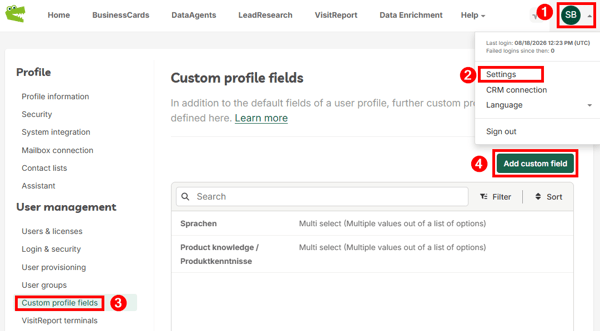
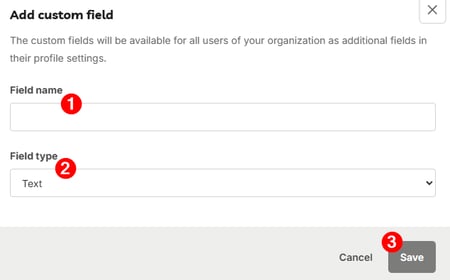
- Enter the Field name users will see.
- Choose the Field type: Text (free text input), Single select (one option from a list you provide) or Multi select (one or more options from a list you provide). For Single and Multi select, add the options via the Add option button.
- Click Save to make the field available to all users of the organization.
How do I edit an existing custom profile field?
Edit an existing custom profile field by clicking the three dots on the right side of the field in the Custom profile fields list, then choose the edit action. Changes apply to the field for all users.
Which questions commonly come up next?
How can I add a profile picture to my snapAddy account?
Add a profile picture on the Profile information page using the Upload picture button next to the avatar. See How can I add a profile picture to my snapAddy account?
How can I update profile information of all users at once?
Admins can update profile information for all users centrally rather than per user. See How can I update profile information of all users at once?
How do I configure custom profile fields in detail?
The full field-type and setup reference, including Single and Multi select examples, is covered in How do I configure custom profile fields?
If you have more questions, feel free to contact our support under support@snapaddy.com or your Customer Success Manager.