
Step-by-step instructions
- Open the BusinessCards App on your smartphone.
- Tap on "My Card" on the bottom right.
- Select "Add to Wallet".
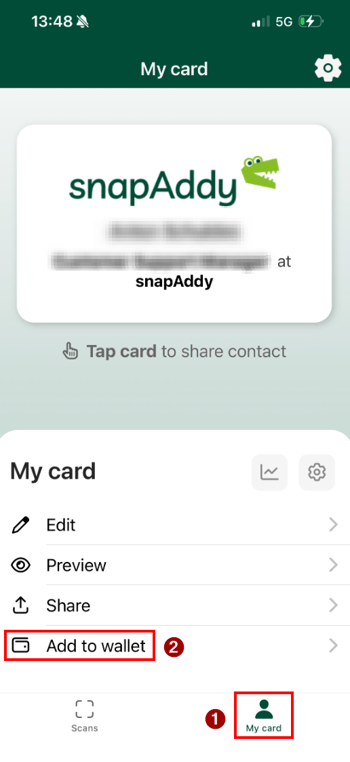
- The browser opens and the business card is displayed directly in the Wallet preview.
- Tap "Add" to save the business card to Apple Wallet (iOS) or Google Wallet (Android).
Once added, the digital business card is permanently stored in your Wallet and can be accessed, displayed, or shared at any time.
Please note: The business card saved in your Wallet does not update automatically when you make changes to your contact data in the BusinessCards App. If your details change, please remove the existing business card from your Wallet and re-add the updated version by following the steps described above.
Good to know: Would you like to save your digital business card to your Wallet without downloading the BusinessCards App? That is also possible. Please refer to our article How can I save my digital business card to my Wallet without the app?.