
What is lead scoring in snapAddy VisitReport?
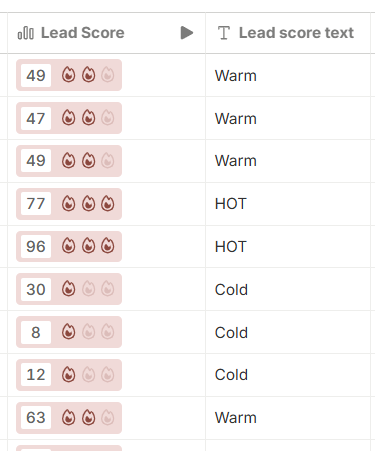
Lead scoring in snapAddy VisitReport is a rating of captured leads. A VisitReport workflow in snapAddy DataAgents calculates the value from the answers of a report. The reports overview shows the result in the Lead Score column as a value from 0 to 100 with flame icons.
The workflow can also fill an additional column with a text rating, for example Cold, Warm and HOT.
Note: Lead scoring needs a license for snapAddy DataAgents. Without this license, no lead scoring workflow is available. The scoring logic is part of a DataAgents workflow and is fully adaptable. The snapAddy system integration team configures the lead scoring workflow. For changes, contact your Customer Success Manager.
How do I set up lead scoring for an event?
A lead scoring workflow in snapAddy DataAgents is required. When it exists, set up lead scoring in the event settings, in the Workflows tab. Select the lead scoring workflow there and enable the Lead score execution behavior.
- Open the event in the VisitReport Dashboard and go to Settings > Workflows.
- Click Select workflow.
- In the Select workflow dialog, select the lead scoring workflow from the list.
- Under Execution behavior, enable the Lead score option. You can then start the workflow manually to run lead score in the reports overview.
- Click Save.
You can also enable On report completion or On report review in the same dialog. The workflow then runs automatically at that moment.
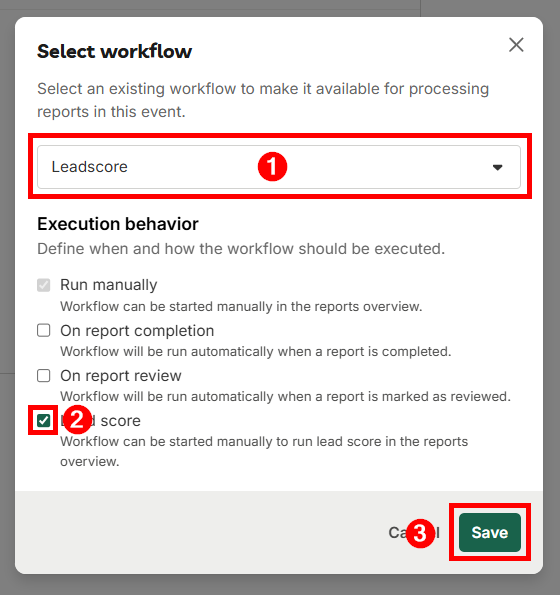
The Lead Score column becomes an active action in the reports overview only after you save. For general information about adding a workflow to an event and about the available workflow types, see How do I add a workflow to a VisitReport event?
How do I run lead scoring in the reports overview?
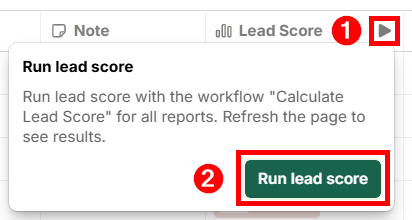
Start lead scoring in the reports overview with the play icon in the Lead Score column. A run always covers all reports of the event, not one single report.
- In the VisitReport Dashboard, open the Reports area.
- In the Lead Score column header, click the play icon.
- In the Run lead score window, click Run lead score. The window also shows the name of the workflow that is set up for lead scoring.
- Refresh the page to see the results.
Why is no lead score shown?
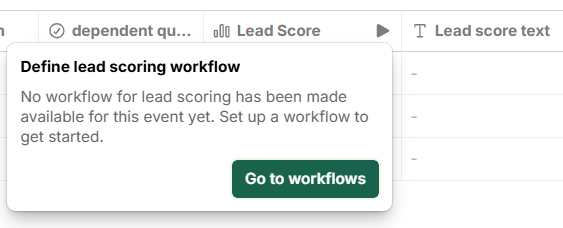
No lead score is shown when the run is not complete, or when the event has no lead scoring workflow. Refresh the page first, because the reports overview does not update the values automatically.
If both points are correct, check the execution in the Logs area in snapAddy DataAgents. It shows every execution with its status and the path it took.
If you have more questions, feel free to contact our support under support@snapaddy.com or your Customer Success Manager.