
The Shared CRM Connection offers advantages for organizations with multiple users: All team members use the same stable connection without each individual user having to perform their own CRM authentication. This significantly simplifies administration and ensures smooth operation.
⚠️🚨Important: Shared CRM connections are used for workflows. Users with the following roles gain access to the shared connection:
- Administrators (DataAgents, VisitReport)
- Managers (DataAgents)
- Event Managers (VisitReport)
This may exceed their personal CRM permissions.🚨
Step 1: Create a Technical User in SAP Sales Cloud V2
Before you begin the setup, ensure that you have administrator rights in SAP Sales Cloud V2.
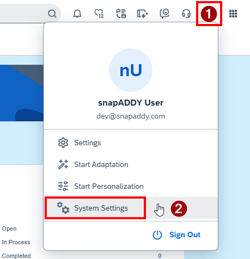
- Navigate to User Menu → System Settings.
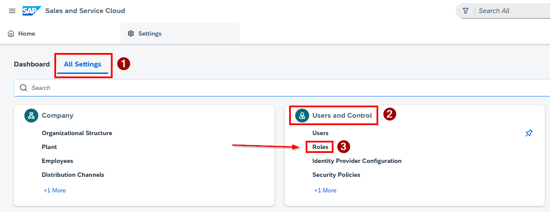
- Go to All Settings → User and Control → Roles.
- Switch to the Technical Roles tab and create a new technical role.

- Assign a unique name (e.g., "snapAddy_API_user") and add the required Business Services. You can adjust these services later as needed.
- Lead (required for a successful connection check)
- Contact
- Customer
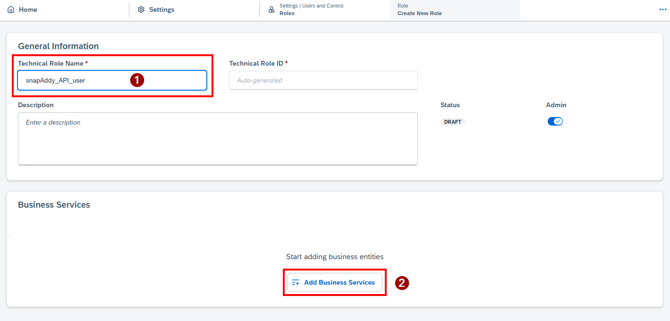
- Click Save to create the technical role.
Step 2: Configure API User
- Go to All Settings -> User and Control -> Users
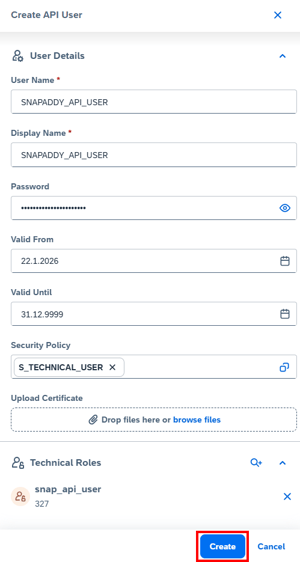
- Create a new technical User ( API User)

- Assign a username, display name, and password
- Add the previously created technical role to this user.

- Click Create to finalize the API user.
Step 3: Enter Credentials in snapAddy
- Log in to the snapAddy Dashboard
- Navigate to Settings → Organisation → CRM Connections and click on "Add CRM system"
- Select SAP Sales Cloud V2 as the CRM system
- Choose the Shared Connection option
- Enter the following information:
- SAP instance URL
- Credentials from Step 2.3
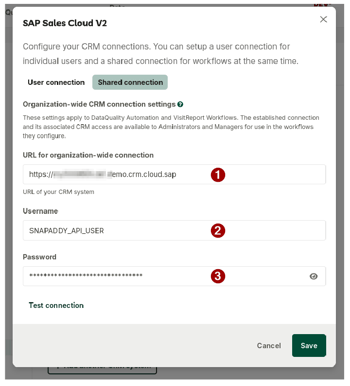
- Test with "Test connection" and save the connection with "Save"
Step 4: Ensure filtrability of the field "accountContactsStatus"
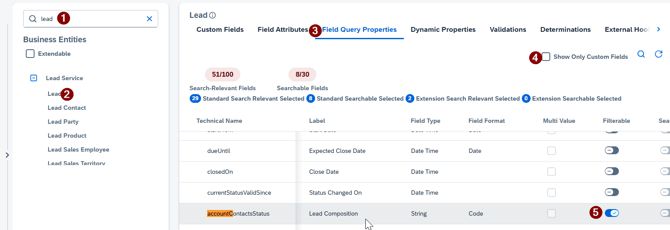
- Navigate to the "Extensibility Administration", search for "Lead" and select "Lead" under Lead Service
- Select "Field Query Properties" and make sure, that the check mark for "Show Only Custom Fields" is not set
- Search for "accountContactsStatus" and ensure that the toggle for "Filterable" is set
Related Articles
If you have more questions, feel free to contact our support under support@snapaddy.com or your Customer Success Manager.