
Contents:
- What is report handover in VisitReport?
- How do you hand over a report to a colleague?
- How do you accept a handed-over report?
- What happens if a handed-over report is not accepted?
- Which questions commonly come up next?
What is report handover in VisitReport?
Report handover is a snapAddy VisitReport function that sends a started report from one user's device directly to another user's device. At large trade show booths, several staff members often look after the same visitor, so the colleague who started the report forwards it to the specialist who continues the conversation. Report handover always takes place within one event.
Note: report handover must be activated once per event before it can be used. See How do you activate report handover in the VisitReport dashboard?.
How do you hand over a report to a colleague?
You hand over a report directly from the open report, by choosing a colleague and confirming the handover.
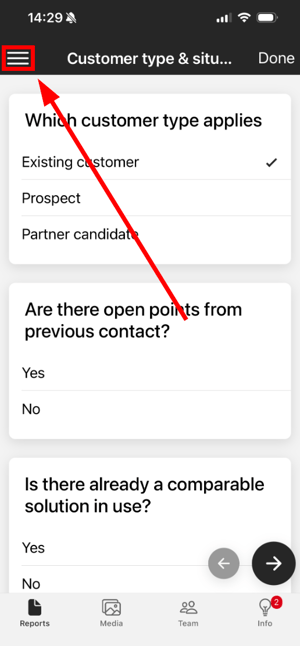
Step 1: Open the report and tap the menu icon at the top left.
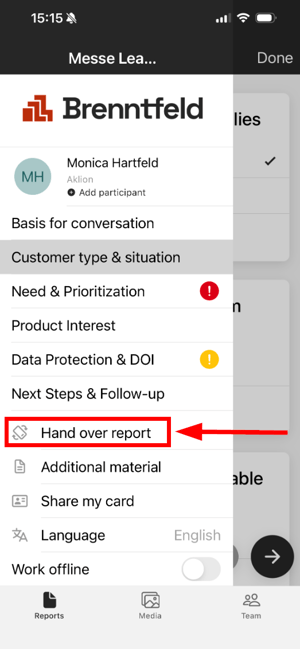
Step 2: Tap Hand over report in the menu.
Step 3: Select the team member you want to hand the report to.
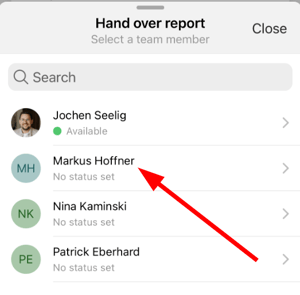 Select the team member for the handover.
Step 4: Confirm with Hand over report.
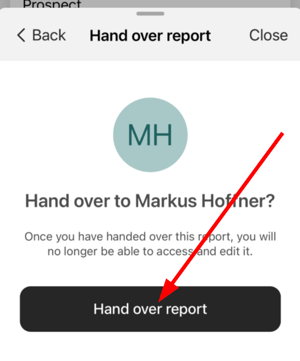
Please note: once you have handed over this report, you will no longer be able to access and edit it.
Result: After the handover, the message Report handed over successfully appears.
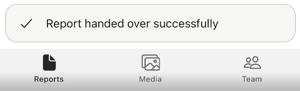
Please note: reports can only be handed over to users with a named or concurrent licence.
How do you accept a handed-over report?
The recipient accepts a handed-over report from the Received reports list on the start screen, either during the conversation or afterwards.
Step 1: The recipient receives a New report received notification on the device, so no one misses a handover even when the booth is busy.

Step 2: Open Received reports from the start screen; a badge shows how many reports are waiting.
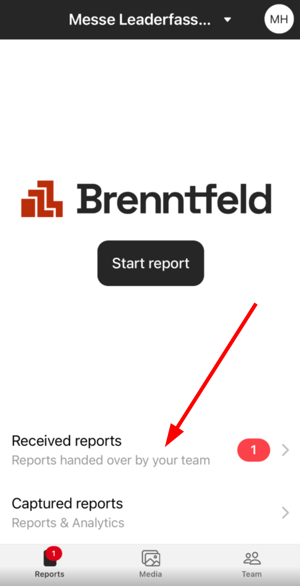
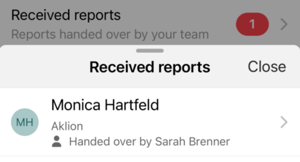
Step 3: Tap the report in the Received reports list to accept it. The list shows who handed the report over.
What happens if a handed-over report is not accepted?
If a handed-over report is not accepted, the sender can reclaim it at any time, so no report gets lost.
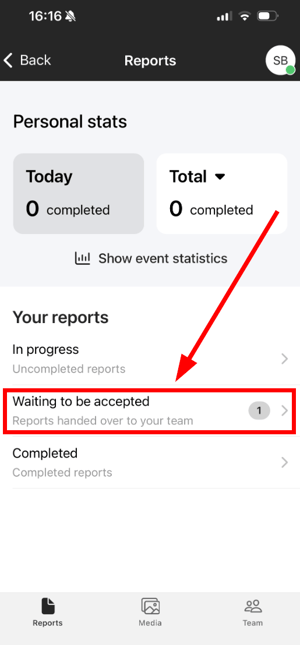
Step 1: On the start screen, tap Captured reports.
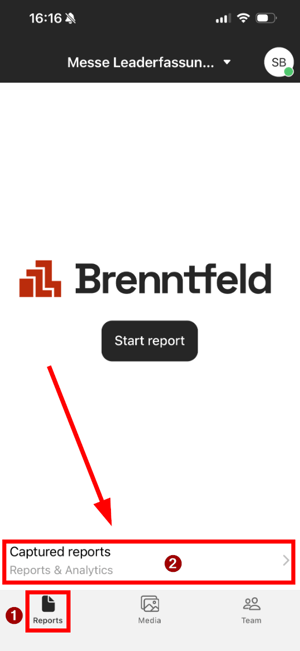
Step 2: Under Your reports, open Waiting to be accepted. It lists the reports you handed over to your team.
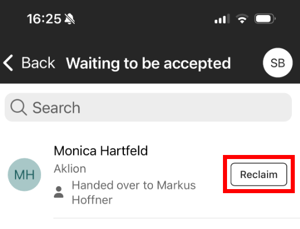
Step 3: In the Waiting to be accepted list, tap Reclaim next to the report.
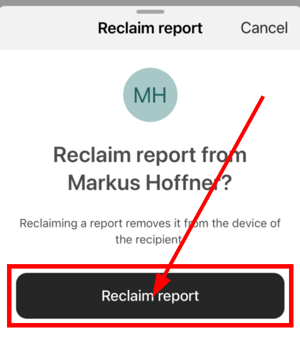
Step 4: Confirm with Reclaim report to take the report back.
Which questions commonly come up next?
How do you activate report handover in the dashboard?
An Event Curator, Event Manager or Admin activates report handover in the VisitReport dashboard within team coordination, either while activating team coordination or afterwards under Team coordination > Settings. For the step-by-step guide, see How do you activate report handover in the VisitReport dashboard?.
How does team coordination work in VisitReport?
Team coordination gives an overview of the colleagues attending the trade show with you and lets you check their availability and contact them in the app. Report handover is activated inside this same feature. Read more in Team coordination.
How do you transfer reports from the VisitReport app to the dashboard?
Report data is automatically synchronised to the VisitReport dashboard as soon as it is recorded in the app, and completed reports appear in the dashboard. Report handover, by contrast, moves an in-progress report between users' devices. Read more in How do you transfer reports from the VisitReport app?.
If you have more questions, feel free to contact our support under support@snapaddy.com or your Customer Success Manager.