
Which workflows can be added to a VisitReport event?
Only VisitReport workflows can be added to a VisitReport event. The VisitReport workflow is a dedicated workflow type in snapAddy DataAgents, designed to process reports created in snapAddy VisitReport.
When you create a workflow in snapAddy DataAgents, you choose the workflow type. The options are Event-based workflow, Scheduled workflow, VisitReport workflow and Continuous workflow. Only the VisitReport workflow subsequently appears in the event settings. If a workflow is missing from the list there, a different workflow type is the most common reason.
A VisitReport workflow can enrich and validate the data of a completed report and update entities in connected systems such as a CRM. VisitReport workflows are configured and managed in the workflow automation platform snapAddy DataAgents. A VisitReport workflow is then added to the individual VisitReport event so that it runs for the reports of that event.
Which prerequisites apply before I add a workflow?
Before you add a workflow to a VisitReport event, a VisitReport workflow must already be configured in snapAddy DataAgents. These prerequisites also apply:
- The VisitReport workflow exists in snapAddy DataAgents.
- For testing, use a dedicated test event rather than a productive event with real participants.
- The event status is Live so that completed reports arrive in the VisitReport Dashboard.
How do I add a workflow in the event settings?
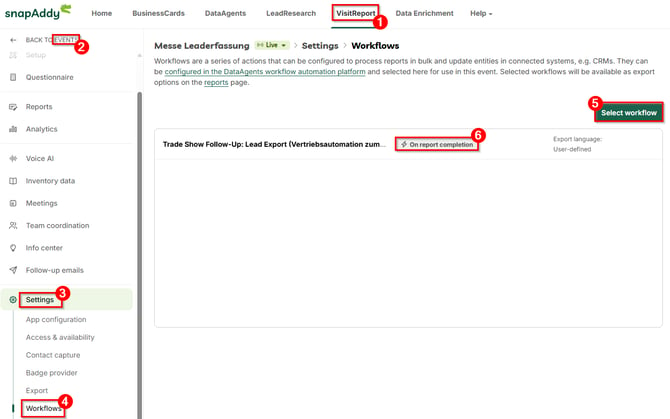
You add a workflow through the event settings in the Workflows tab, where you select the workflow and define its execution behaviour.
- Open the event in the VisitReport Dashboard and go to Settings > Workflows.
- Click Select workflow and choose the VisitReport workflow you want.
- Select the execution behaviour On report completion so that the workflow starts automatically as soon as a report is completed.
Note: Once added, the workflow is also available as an export option on the Reports page. This allows you to trigger the workflow manually for individual reports.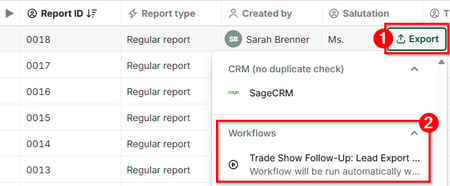
How do I roll a workflow out to further events?
After a successful test, add the workflow in the settings of every further event in which it should run. The procedure is identical in each event: settings, Workflows tab, select workflow, define execution behaviour.
If you also add the workflow to a Master Event, it is copied automatically into all events duplicated from it. This saves effort when you run many events of the same type.
Which questions commonly come up next?
How do I trigger a workflow manually for a single report?
You trigger a workflow manually by opening the report in question, clicking Export and selecting the workflow. For the steps, see How do I trigger a workflow manually for a single report?
What are "Logs" in snapAddy DataAgents?
The Logs area in snapAddy DataAgents documents every workflow execution with its status and the path it took, which makes it the central place for testing and error analysis. For details, see What are "Logs" in snapAddy DataAgents?
If you have more questions, feel free to contact our support under support@snapaddy.com or your Customer Success Manager.